
Roxy AI Agent
TIP
Roxy AI Agent is an intelligent execution AI assistant. Its core advantage is that it requires no complex code. Simply describe your needs in everyday spoken language, and the AI will control multiple browser profiles to perform automated tasks simultaneously.
Start Your AI Automation Journey
Entering Roxy AI Agent is very simple. In the bottom-right corner of the RoxyBrowser client, click on "Roxy AI Agent" to enter the main operation interface.

After clicking, a window with a pink-and-blue gradient background will appear—this is where you command your Roxy AI Agent. The interface mainly consists of three functional areas: the Task Template Area, the Command Input Box, and the Status Display Area. All subsequent core operations are performed here.
- Command Input Box: Located in the middle of the interface, this is where you enter commands for the AI Agent. At the bottom left of the Command Input Box, you can find a "Multi-Profile Parallel" toggle. If you need to execute multiple tasks simultaneously or assign independent browser environments to different tasks, be sure to turn this on. This way, the AI will open and control multiple browser profiles synchronously to execute tasks.
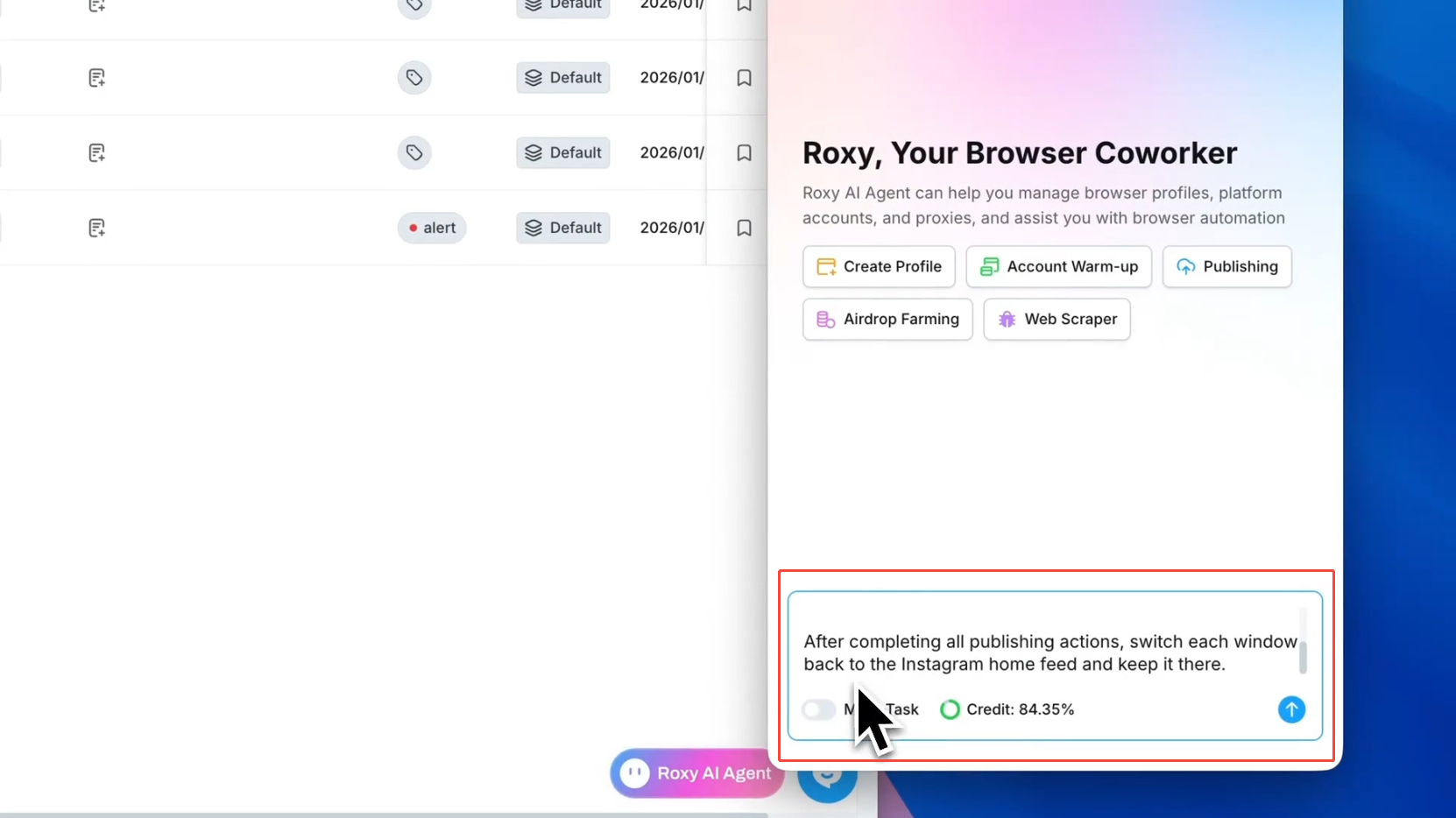
- Task Template Area: This is the functional area that appears in the center by default when you open a new session. It presets the most frequently used automation operations. Simply click one of the template options to generate a corresponding command template in the Command Input Box. With simple modifications according to your needs, you can execute the operations you want.
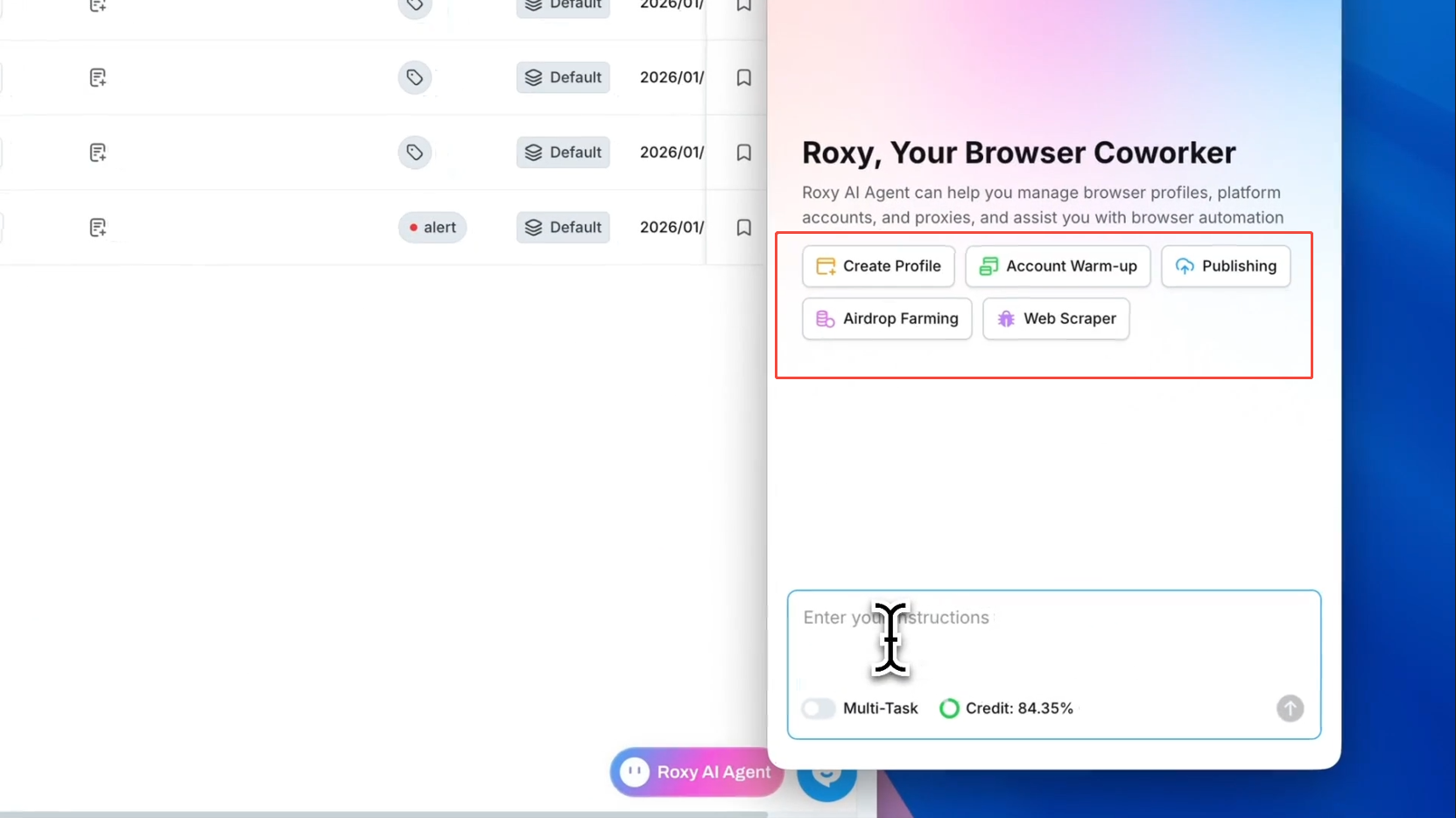
- Status Display Area: If you send your command in the Command Input Box, the Task Template Area will be replaced by the Status Display Area. The Status Display Area will display the commands you have entered and return the AI's execution results. When presenting results, it can display every logical step of command execution and the time spent on each step in real-time.
Natural Language Understanding and AI Auto-Execution
Roxy AI Agent's biggest breakthrough lies in its realization of "Natural Language as Code." You don't need to learn complex Python scripts or debug Selenium frameworks. Simply enter natural language as commands, and the AI will automatically complete multi-account, multi-profile automated operations. Whether it's batch creating environments, platform account nurturing, content publishing, or data collection, just describe your needs, and the AI will understand and execute.
- Enter Your Command
Enter your task description in the Command Input Box, such as "Help me create 5 browser profiles and configure independent fingerprints" or "Simultaneously publish prepared video content in these accounts." Commands can be generated based on task templates or can be fully customized natural language.
- Task Execution
After submitting the command, the AI will automatically break down the task logic and synchronously control multiple browser profiles to execute step by step. During task execution, the Status Display Area will show the AI's execution progress in real-time, allowing you to clearly and completely see the specific actions the AI is performing and the time spent on each step, such as "Thinking," "Generating content," "Submitting form," etc.
- View Results
After the task is completed, each profile will complete the corresponding operation according to the command requirements, without you needing to manually handle each account one by one. From environment configuration to business execution, the entire process is automated, greatly improving efficiency.
Deep Dive into Task Templates
The Task Template Area comes pre-loaded with templates covering high-frequency scenarios in cross-border operations. New users can use them out of the box. Click any template to generate a corresponding command in the Command Input Box, which you can then fine-tune according to your needs before execution. Currently supported templates are as follows:
| Template Name | Applicable Scenario | Function Description |
|---|---|---|
| Create Profile | Batch initialization of browser environments | Quickly set the number of profiles, proxy IP types (static residential/dynamic traffic), and browser fingerprint versions, saving the trouble of manual one-by-one configuration. |
| TikTok Account Warm-up | Matrix account weight improvement | Automatically execute standardized account warm-up processes, simulating real user behavior (video watch time, following, interactions, etc.), improving account weight while avoiding platform detection. |
| Content Publishing | Multi-platform batch distribution | Batch publish videos or images on major media platforms like TikTok and Instagram, supporting preset publishing times, copy, and tags, achieving fully automated global content distribution. |
| Web Scraper | Data collection and organization | After entering the target website address, the AI automatically recognizes the web page structure and completes data scraping and export, greatly reducing manual collection costs. |
TIP
The task template library will continue to expand, covering more vertical scenarios and platforms in the future. You can also directly enter natural language to describe your needs, without being limited by templates.
MCP Integration

Roxy AI Agent now supports integrating external MCP (Model Context Protocol) services. Through MCP, you can seamlessly connect the AI Agent with various external tools, data sources, and third-party services, breaking through the boundaries of built-in capabilities.
- Custom MCP Server: Supports configuring private or open-source MCP server addresses. The AI Agent can automatically recognize and call corresponding tools when executing tasks.
- One-click Access to Mainstream Services: Provides quick configuration entry points for various mainstream MCP services, enabling them without writing complex parameters.
- Dynamic Capability Expansion: After integration, the AI Agent's command understanding scope and execution capabilities will expand in real-time with MCP services, achieving more complex cross-system automation.
The configuration entry is located in the AI Agent settings panel. After adding an MCP service, simply describe your needs in the task command, and the AI will automatically determine when to call external MCP tools to complete the goal.

Skills Integration
Roxy AI Agent supports integrating external extended capabilities through the Skills mechanism. Skills are packaged reusable functional units that can be enabled on demand, allowing the AI Agent to quickly gain professional capabilities in specific domains.
- Third-party Skills Integration: Supports integrating official or community-provided Skills, covering vertical scenarios such as SEO analysis, content generation, and data cleaning.
- Flexible On-demand Configuration: Freely enable or disable Skills according to your current business scenario, avoiding interference from irrelevant capabilities in command parsing and improving execution accuracy.
- Integration with Task Templates: Skills can be combined with task templates, embedding custom capabilities into standardized processes to achieve more complex automated workflows.
In the Skills area of the AI Agent settings panel, check the required skills to activate them. After enabling, the AI will automatically call the relevant Skill to assist in task execution when appropriate.
Conversation Management
Efficient organization is the secret to handling high-intensity multi-account operations. Roxy AI Agent provides a minimalist but powerful conversation management system, allowing you to easily manage every automated workflow.
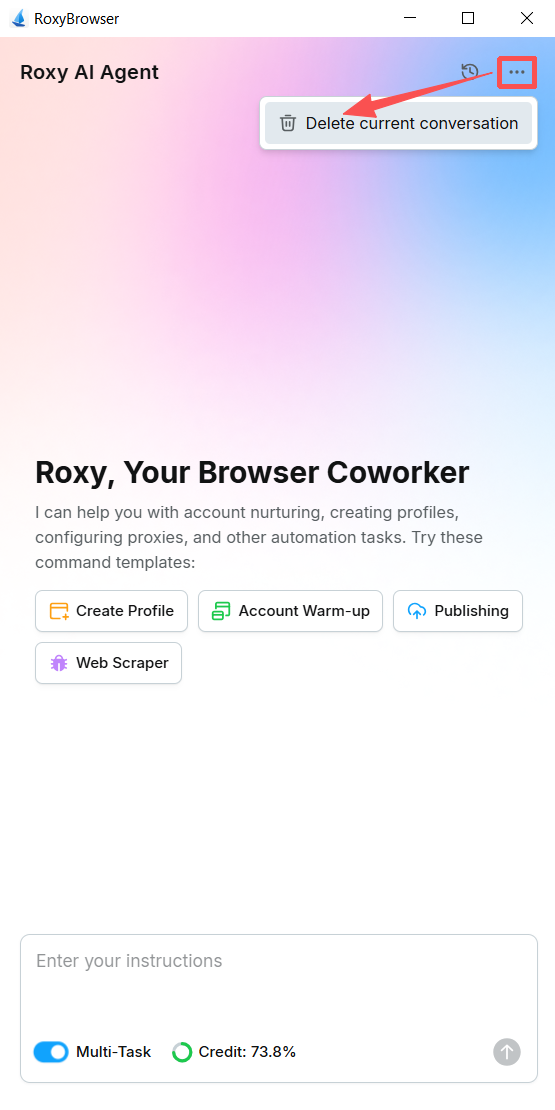
Deleting Conversations
- Application Scenario: As businesses change, some conversations may no longer be needed. Cleaning up the conversation list in a timely manner keeps your operation interface in the most efficient state and can also protect the privacy of certain tasks.
- Operation Method: When hovering over the corresponding conversation button in the history record on the left, a "Delete" option button will pop up on the right. Click the button to completely remove the current conversation.
History
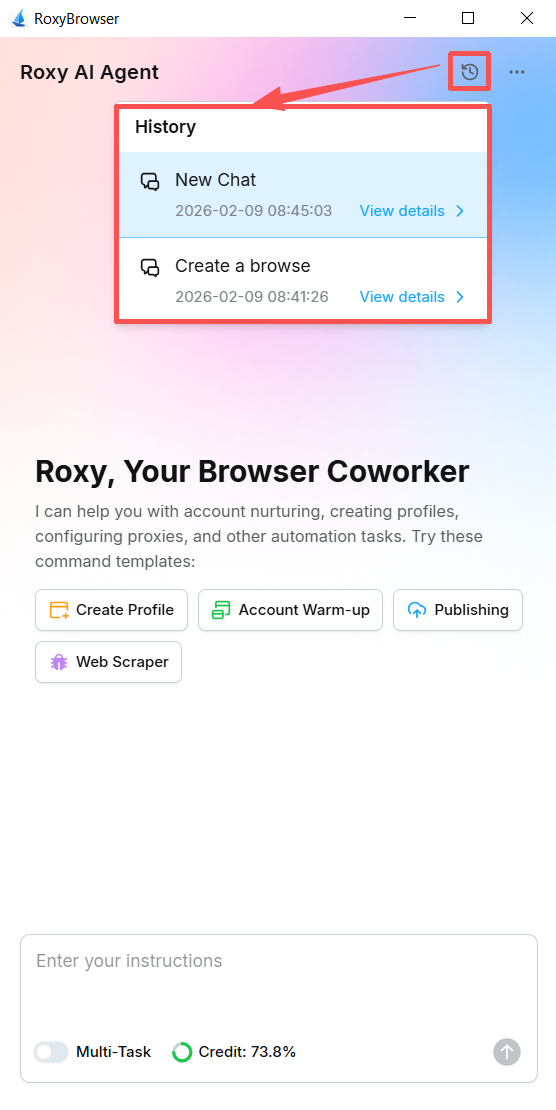
- Application Scenario: This function is equivalent to Roxy AI Agent's archive, showing all the task conversations you have created in the past, making it convenient for you to review their content. Using this function has irreplaceable value for replicating successful operational processes and troubleshooting business issues.
- Operation Method: The left side of the conversation box is the history record, where you can see all the task conversations you have created in the past and their creation times. Clicking a conversation will switch you to its corresponding interface.
Adding Conversations
- Application Scenario: In addition to managing your previous conversations, if you have a completely new business logic (for example, switching from "TikTok Account Warm-up" to "Amazon Data Collection"), you often need to create a new conversation. This practice thoroughly isolates different business lines, effectively avoiding confusion in command logic and making the AI's understanding more precise.
- Operation Method: Click the New Conversation button in the upper-left corner of the old conversation interface, and a clean conversation interface will be immediately generated.
